
Day 21 introduces the Resume Formatter — paste any raw CV or resume text and instantly get a clean, ATS-friendly single-column layout or a polished modern two-column PDF-ready resume.
What the Resume Formatter does
The tool auto-detects common resume sections (contact, summary, experience, education, skills, certifications), normalizes dates to MM/YYYY, and flags common ATS pitfalls (images, emojis, headers/footers, inconsistent dates). Toggle between the plain ATS-safe layout and a visually enhanced Modern layout, customize the accent color, and download a high-quality PDF or copy formatted plain text.
Key features
- Auto-detection — finds contact info, experience entries with dates, education, skills, and certifications.
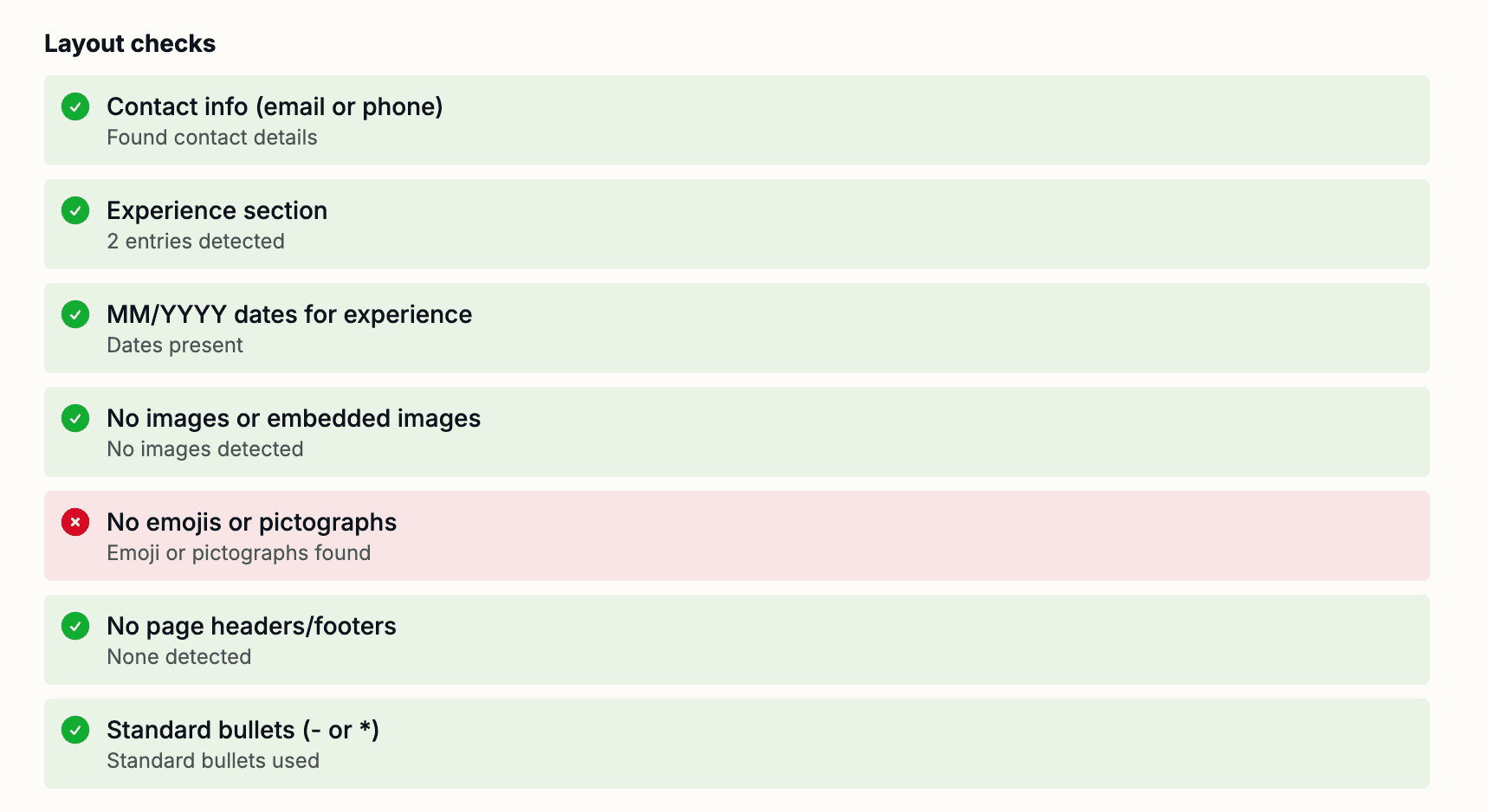
- ATS checks — layout validation warns about images, emojis, non-standard bullets, and missing dates.
- Two layout modes — a strict ATS-safe single column and a clean modern two-column design that remains ATS-compatible.
- PDF export — one-click PDF generation (client-side using jsPDF + html2canvas).
- Privacy-first — everything runs in your browser; nothing is sent to servers.
How to use
- Open /day/21 and paste your raw resume text into the textarea.
- Check the Layout checks on the right — fix any red warnings (images, emojis, missing dates) or use the tips section for guidance.
- Toggle between ATS and Modern previews until you’re happy with layout and spacing.
- Customize the accent color (Modern only) if you want a branded look.
- Download the formatted resume as a PDF or copy formatted plain text to paste into your application.
Tips for ATS success
- Use standard fonts (Arial, Calibri, Times New Roman) and stick to black text on white background for ATS mode.
- Remove images, headers, and footers; keep contact info at the top.
- Use hyphens or asterisks for bullets and consistent MM/YYYY dates.
- Start each bullet point with an action verb and include numbers when possible.
Format faster, apply smarter — try the Resume Formatter at /day/21.